From EMu 10 onwards it is possible to create and run reports in EMu using Microsoft Power BI. While explaining how to design reports in Power BI is beyond the scope of this documentation, we do describe initial steps here:
-
Create a report as usual in EMu (search for or retrieve a group of records in a module), and select
Microsoft PowerBI Reportfrom the report Type drop list (details here). -
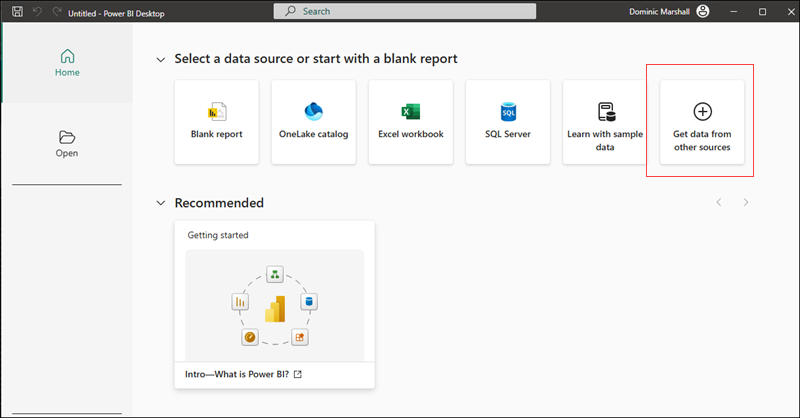
When the report is run for the first time (Step 7), the Power BI application will open:
-
Select Get data form other sources and enter
ODBCin the Get Data search box: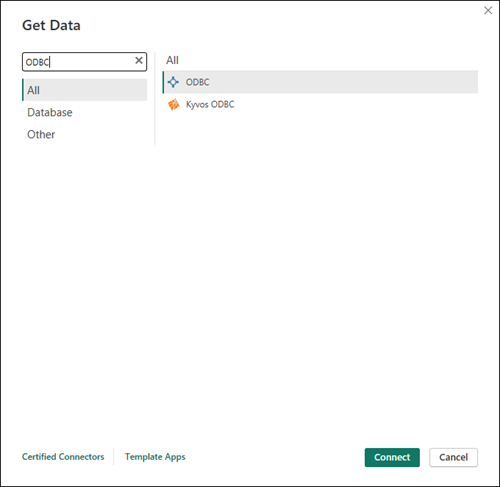
-
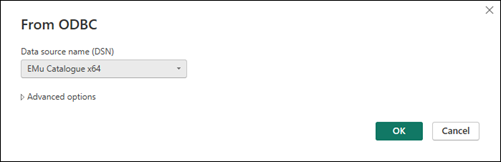
Select the data source applicable to the EMu module in which you began creating the report, for example EMu Catalogue x64:
-
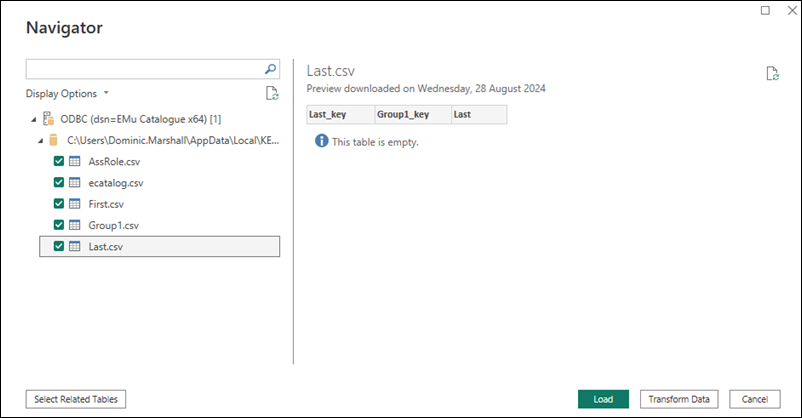
Select all of the listed CSV files and then select Load:
-
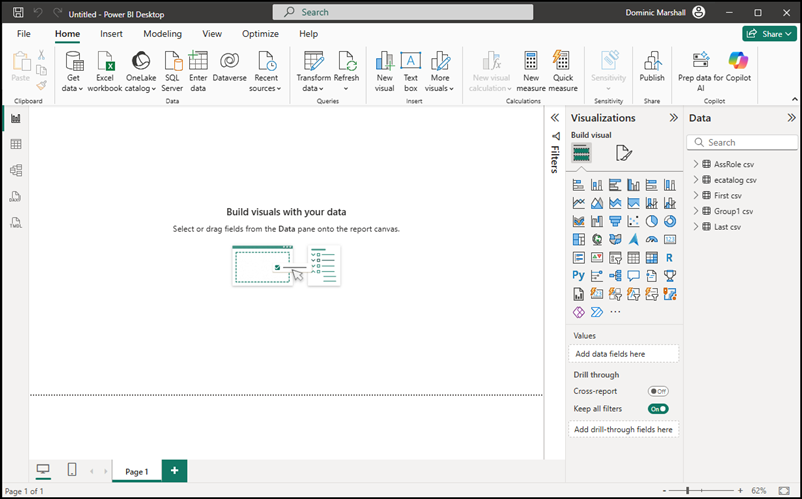
The data is loaded and you are then able to build the report:
-
When the report is completed save it to the EMu server.
Important
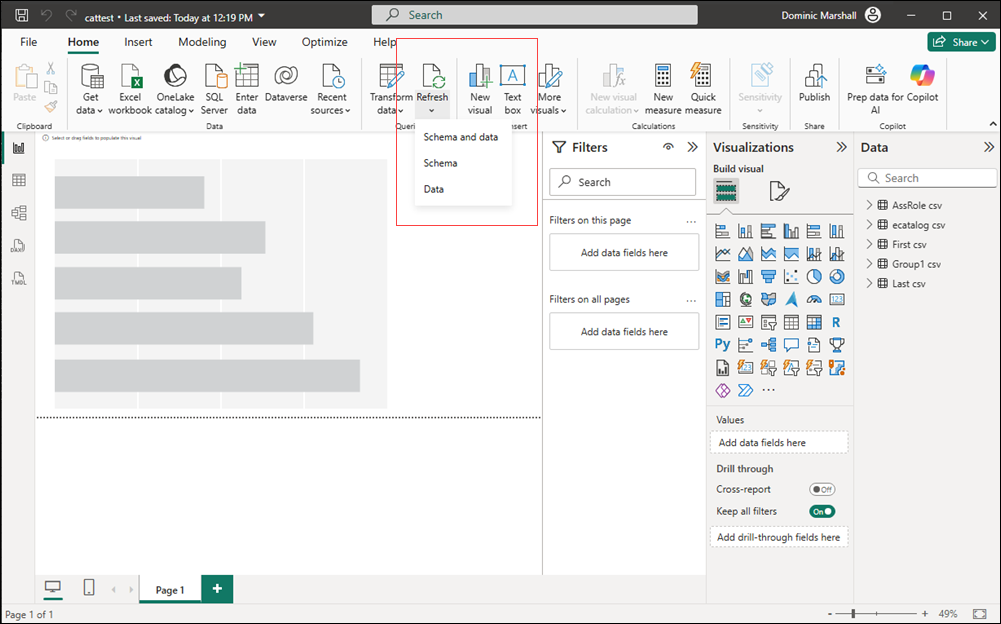
As Power BI stores report data in the report itself, it is necessary to refresh the data with each subsequent run of the report. When the report opens, select the Data option under the Refresh menu and the latest data will be imported into the report:
 Feedback